 |
 |
|
|
|
|
Resource~How to Use FamilySearch Full Text |
FAMILYSEARCH FULL TEXT INSTRUCTIONS
|
You've probably seen some of the discussions
about a new feature using FamilySearch, which will bring up results
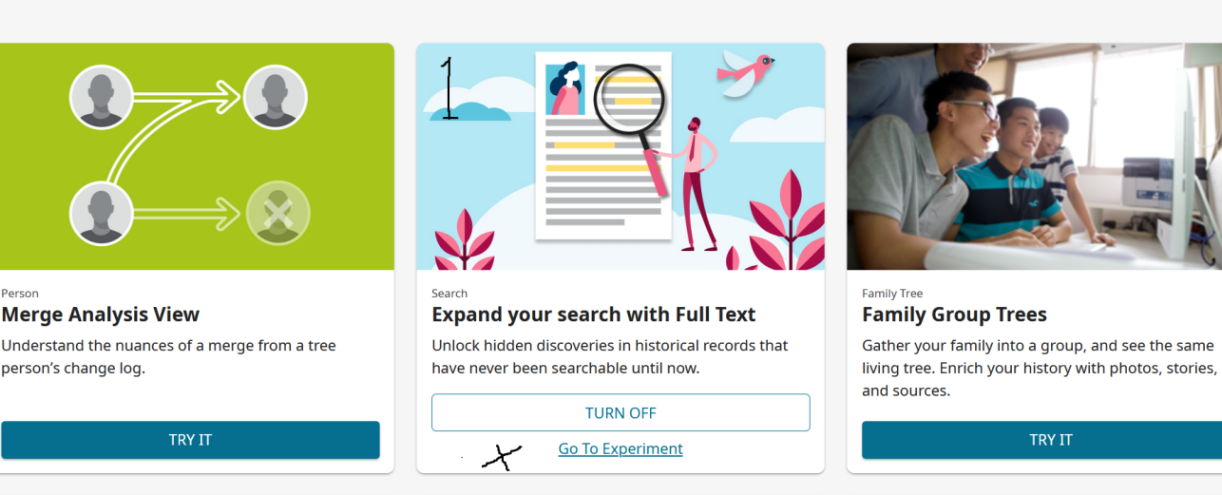
in some of their unindexed collections. Right now, it's the Probate
and Land Records, including Deeds of all kinds, Court
Records, Tax and other County records are just a few of the
kinds of records all added in the past year, and I have to tell you,
it is a total game changer! It's using new technology to read &
transcribe the documents, and it may take a little while for that to
get perfected, but don't let that stop you, the search is great and
can find totally unexpected documents. And they are testing with
adding more kinds of records, so keep watching their website for
more. There is also an instructional video which
will help get you started in understanding how to use the system. I
suggest you view it first. Once you've got the hang of it and are used to
searching, you can go directly to the Search page on
FamilySearch Full Text Search site here: It was recently announced that even more records on FamilySearch have been added to the Full Text Search on their website, and that it will now be the recommended way to search on their site. Read more about that along with additional information about new ways of researching there:
https://www.familysearch.org/en/blog/full-text-search-experimental-ai
My Preferred Method I've been using this for a while now, and I
while I haven't tried out the new method much yet, I
have a preferred method of searching, for anyone who may wish to try
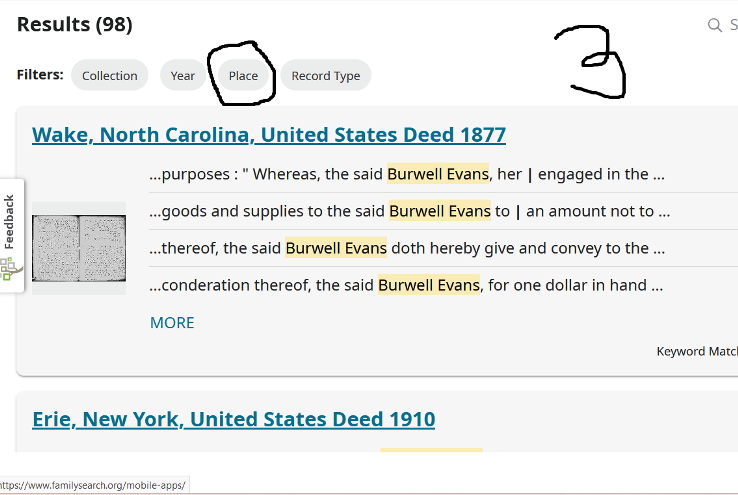
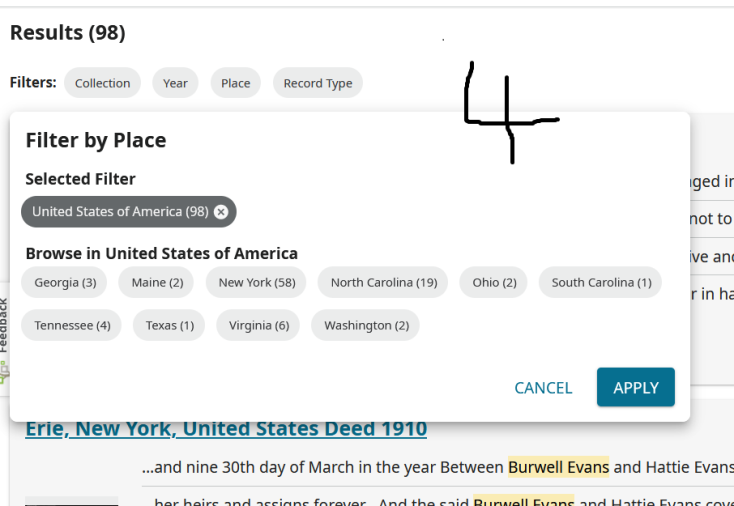
it. I'm including a set of images with these instructions. Click
onto each of the images below to enlarge them:
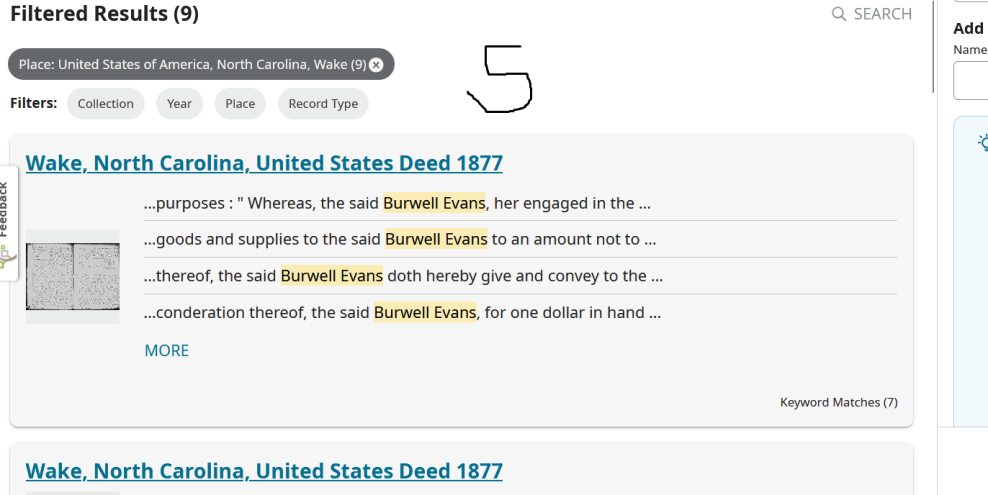
5. After clicking the County, it brings up "Filtered Results", which
look like the Image No. 5, only it's filtered out everything except
the County (or State, if that's what you want) you chose.
Click onto the title of the document, it will open in a separate
tab. You can view it, look through to see if it's anything you want.
You can download images 1 of 2 ways. To download the image so that
you can name it whatever you want, use the icon on the image in
upper right corner that looks like an arrow pointing down, with a
horizontal line underneath it. Or can download using same kind of
icon on the far right side of the page, under the section which says
"Full Transcript". A selection box for customizing the download will
pop up giving you several options of what to include.
Page created by D. Williams Last updated:
June 28, 2025
|